
stonesense
Usage
stonesenseorssenseOpen the visualiser in a new window.
The viewer window has read-only access to the game, and can follow the game view
or be moved independently. Configuration for stonesense can be set in the
dfhack-config/stonesense/init.txt file in your DF game directory. If the window refresh
rate is too low, change SEGMENTSIZE_Z to 2 in this file, and if you are
unable to see the edges of the map with the overlay active, try decreasing the
value for SEGMENTSIZE_XY – normal values are 50 to 80, depending
on your screen resolution.
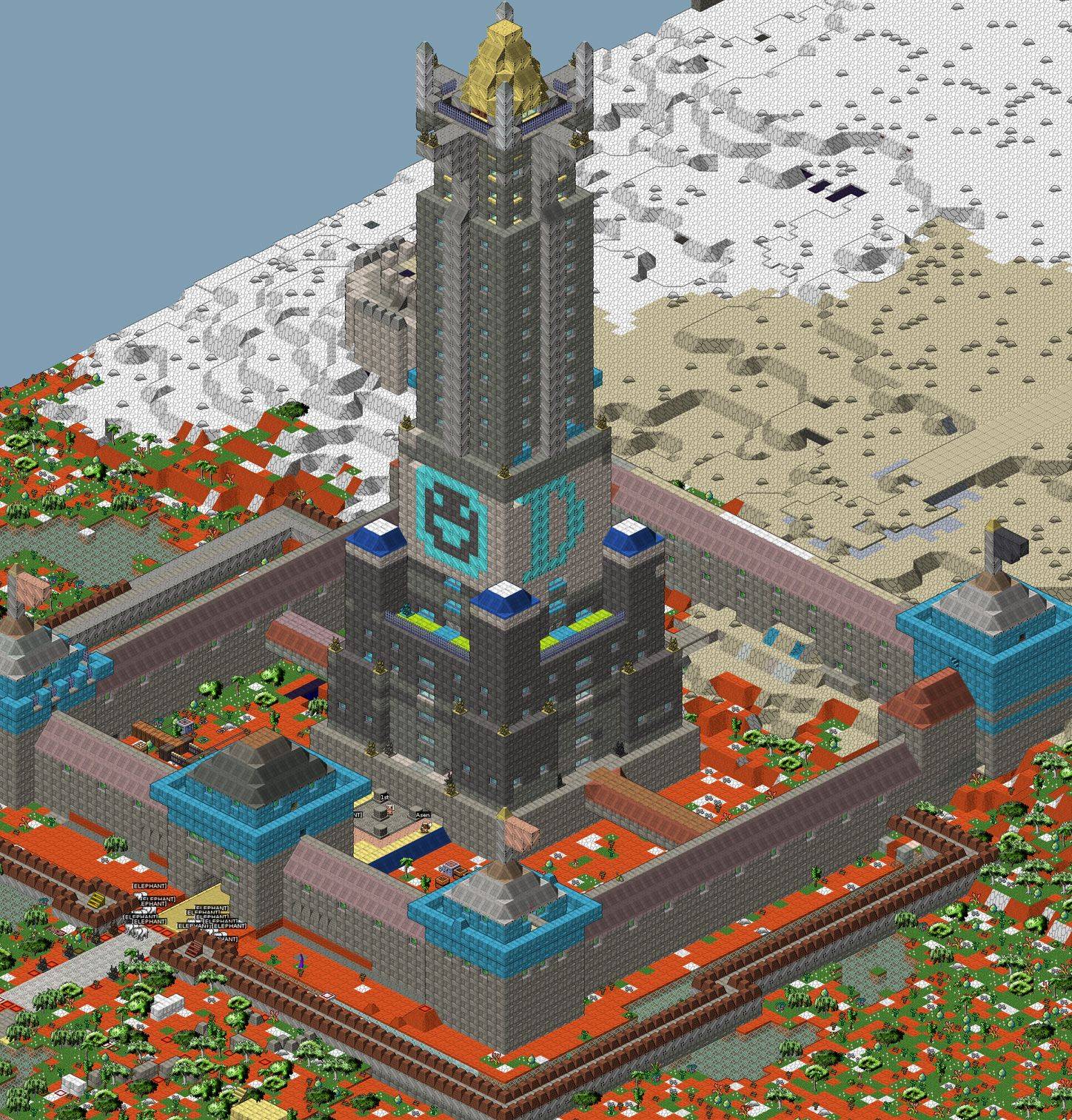
The above-ground part of the fortress Roadtruss.
Controls
Mouse controls are hard-coded and cannot be changed.
- Left click:
Move debug cursor (if available)
- Right click:
Recenter screen
- Scrollwheel:
Move up and down
- Ctrl-Scroll:
Increase/decrease Z depth shown
Follow mode makes the Stonesense view follow the location of the DF window. The offset can be adjusted by holding Ctrl while using the keyboard window movement keys. When you turn on cursor follow mode, the Stonesense debug cursor will follow the DF cursor when the latter exists.
You can take screenshots with F5, larger screenshots with CtrlF5, and screenshot the whole map at full resolution with CtrlShiftF5. Screenshots are saved to the DF directory. Note that feedback is printed to the DFHack console, and you may need to zoom out before taking very large screenshots.
See dfhack-config/stonesense/keybinds.txt to learn or set keybindings, including
zooming, changing the dimensions of the rendered area, toggling various
views, fog, and rotation. Here’s the important section:
INSTRUCTIONS:

This document specifies the keys and associated actions stonesense
can recognize.  The syntax is:
    [<action name>:<action key 1>:<action key 2> ... ]
If the closing brace is preceeded by an asterisk:
    [<stuff>*]
then the keys specified will repeat each frame until released,
otherwise it will occur exactly once each time the character is
registered.

It is possible to specify the same action on multiple lines, or
to leave action names out of the list completely.

Listing multiple actions on the same line is not supported.
Likewise listing the same key for multiple actions will result
in only the last action listed being the one taken when the key is
pressed.  Currently only keyboard events are supported;
stonesense's mouse events are all hardcoded.

A complete listing of valid actions and key values can be found at
the bottom of this file.

KEYBINDINGS:

[ROTATE:KEYS_ENTER]
[RELOAD_SEGMENT:KEY_R]
[TOGGLE_DESIGNATIONS:KEY_D]
[TOGGLE_STOCKS:KEY_I]
[TOGGLE_ZONES:KEY_U]
[TOGGLE_OCCLUSION:KEY_O]
[TOGGLE_FOG:KEYS_SEMICOLON]
[TOGGLE_CREATURE_MOODS:KEY_M]
[TOGGLE_CREATURE_PROFS:KEY_P]
[TOGGLE_CREATURE_JOBS:KEY_J]
[TOGGLE_CREATURE_NAMES:KEY_N]
[CHOP_WALLS:KEY_C]
[CYCLE_TRACKING_MODE:KEY_F]
[RESET_VIEW_OFFSET:KEY_Z]
[DECR_SEGMENT_Z:KEY_1]
[INCR_SEGMENT_Z:KEY_2]
[TOGGLE_SINGLE_LAYER:KEY_S]
[TOGGLE_SHADE_HIDDEN_TILES:KEY_B]
[TOGGLE_SHOW_HIDDEN_TILES:KEY_H]
[TOGGLE_OSD:KEYF_2]
[TOGGLE_KEYBINDS:KEYS_SLASH]
[TOGGLE_ANNOUNCEMENTS:KEY_A]
[TOGGLE_DEBUG:KEYS_TILDE]
[INCR_ZOOM:KEYS_FULLSTOP]
[DECR_ZOOM:KEYS_COMMA]
[SCREENSHOT:KEYF_5]
[INCR_RELOAD_TIME:KEYPAD_PLUS]
[DECR_RELOAD_TIME:KEYPAD_MINUS]
[CREDITS:KEYF_9]

[DECR_Y:KEYS_UP*]
[INCR_Y:KEYS_DOWN*]
[DECR_X:KEYS_LEFT*]
[INCR_X:KEYS_RIGHT*]
[DECR_Z:KEYS_PGDN:KEY_9]
[INCR_Z:KEYS_PGUP:KEY_0]
Streaming stonesense on Windows
If you wish to stream stonesense thru a broadcasting software such as OBS
then you may find that opening stonesense causes your main DF window to flicker
between DF and stonesense. While it is unknown exactly what causes this, a fix
does exist. Simply make sure that both DF and stonesense are using Window Capture
and NOT Game Capture. This will stop the flickering from happening and enable
you to stream stonesense for all to enjoy. This has been tested in OBS on Windows 10 but
should work on Windows 11 and in Streamlabs. Linux, having no
Game Capture option should be unaffected by this issue.
Known Issues
If Stonesense gives an error saying that it can’t load
creatures/large_256/*.png, your video card cannot handle the high
detail sprites used. Either open creatures/init.txt and remove the
line containing that folder, or use these smaller sprites.
Stonesense requires working graphics acceleration, and we recommend at least a dual core CPU to avoid slowing down your game of DF.